Community
Manage your shared community projects.
Sharing a project with the community
You can share your project with the community by opening the Templates panel in the chat sidebar and selecting Community.
Updating a project
Once you've published a project in the Vercel Community and want to update it with your latest changes.
-
Open Your Community Project Link: You can see your community projects here.
-
Click the "Chat" Icon: This will open the original project in the v0 editor.
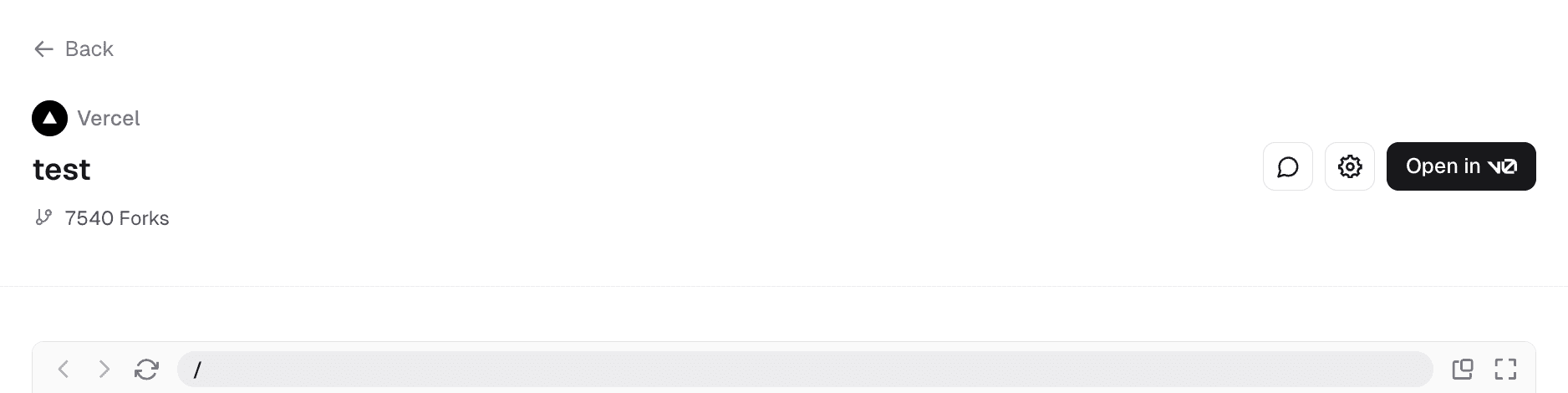
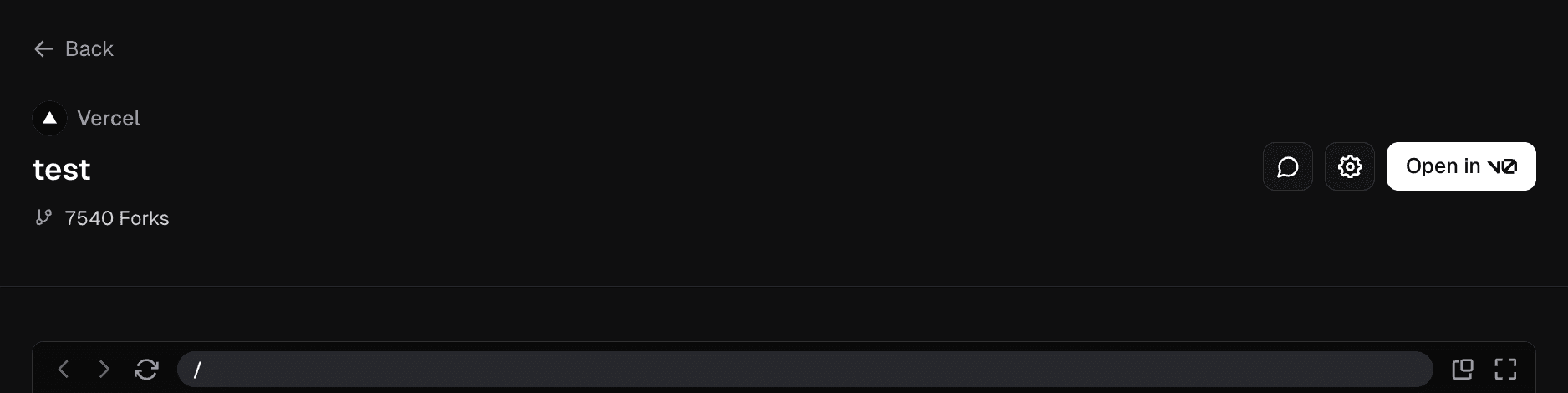
-
Click "+ New Project": You'll see this option in the breadcrumbs at the top. Click it to add the project to a new or existing project under your account.
-
Open the Templates panel: Click Templates in the chat sidebar.
-
Enable Community Sharing: In the Templates panel, find the Community section and make sure the "Share this project with Community" toggle is enabled.
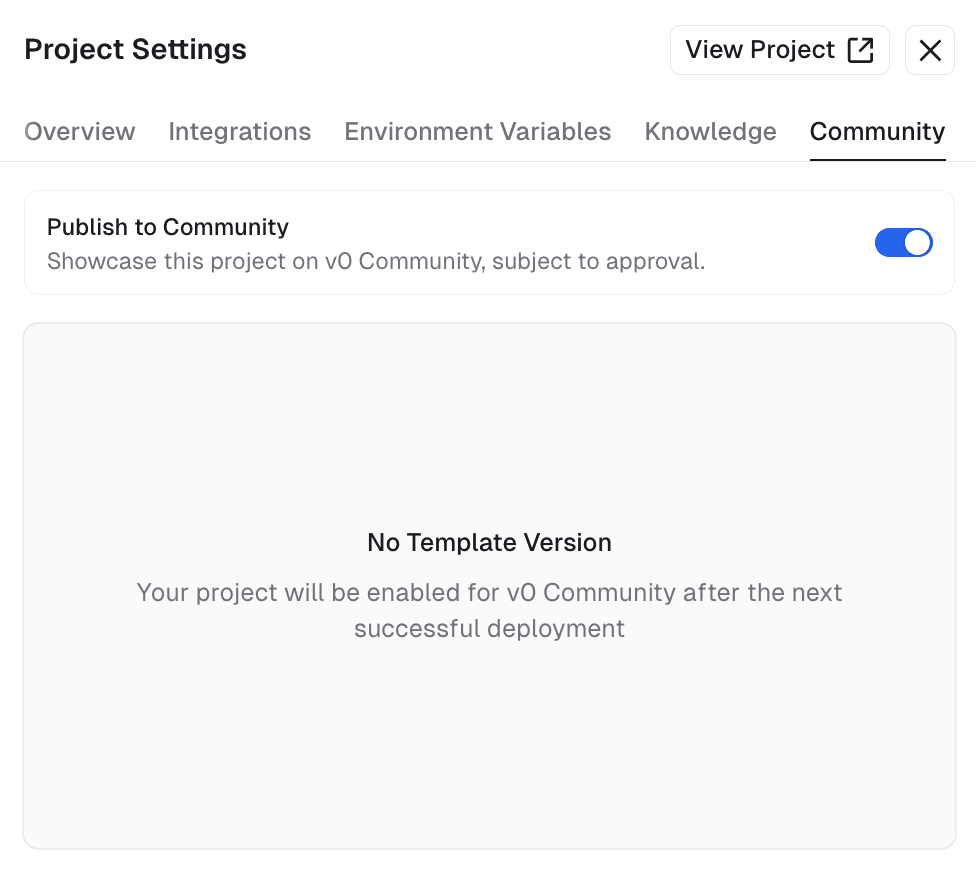
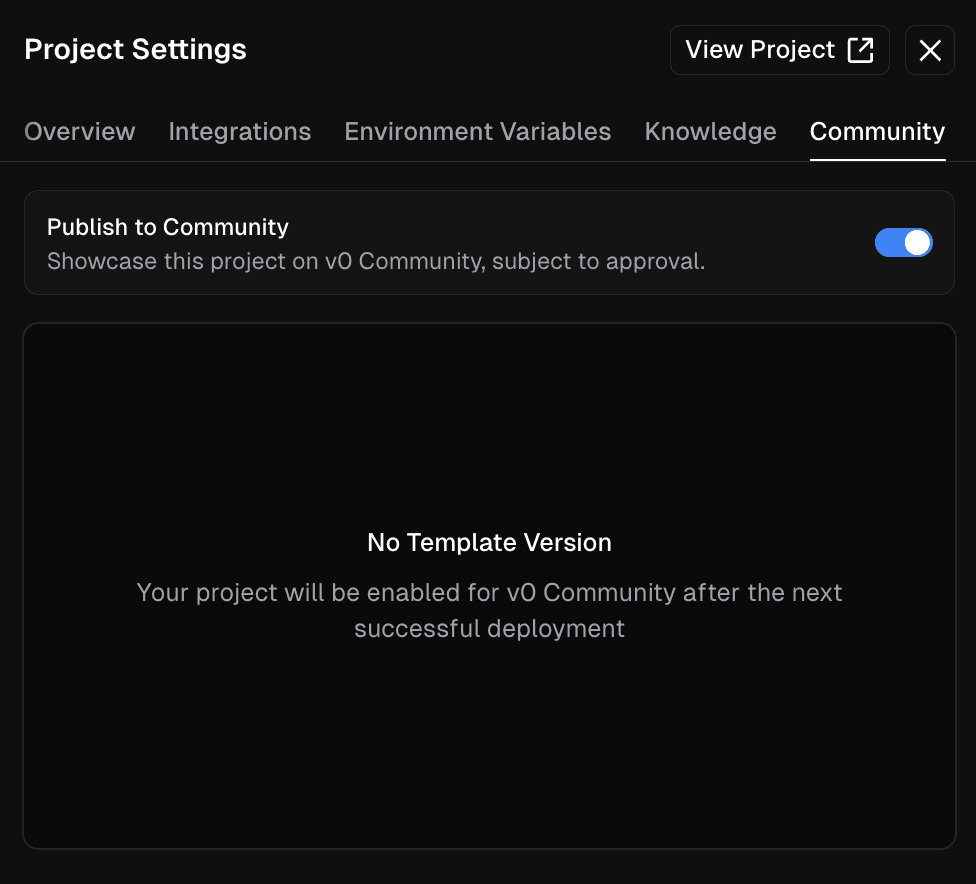
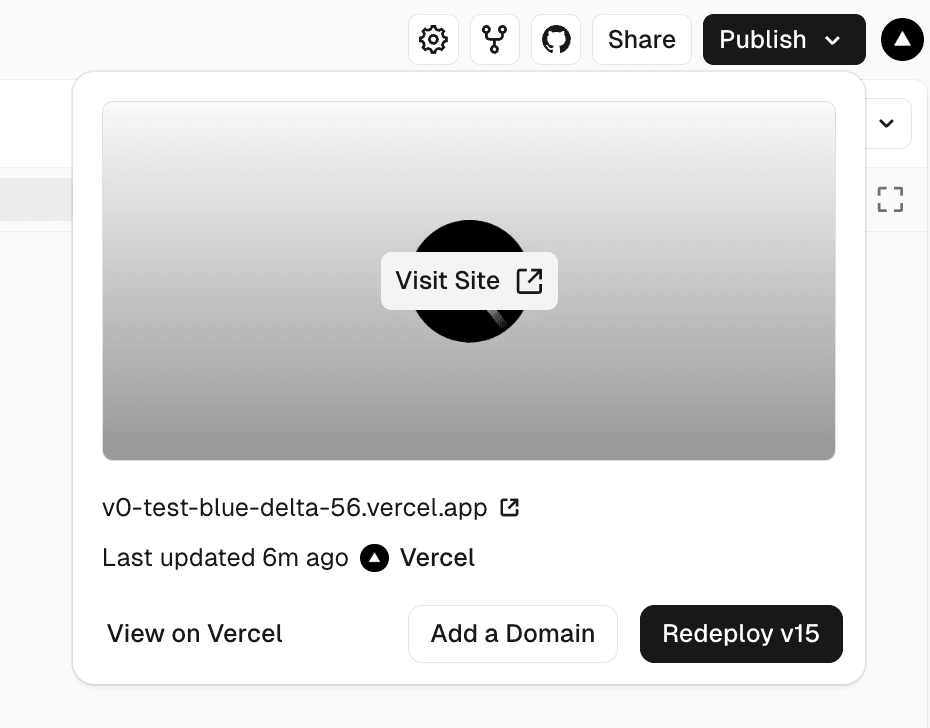
- Make Your Changes and Deploy to Vercel: Update your project (dependencies, code, design, etc.) and deploy it to Vercel. This will automatically update the Community project with your latest changes.
If you have any issues or questions, feel free to reach out on our community